If your Android phone is not connecting to your PC or laptop, the most common reason is a missing Android USB Driver. This small software file tells your computer how to recognize and communicate with the USB-connected device.
In this post, you will find:
- ✅ Working download links for all major chipsets
- ✅ Step-by-step installation guide (Exe method + Manual method)
- ✅ Common errors and their fixes
- ✅ Support for Windows 11, 10, 8, and 7 – all versions
💡 How to find your Chipset? If you don’t know which chipset your phone uses, download the CPU-Z app from the Google Play Store.
Table of Contents
- Universal / Common Android USB Drivers
- MediaTek (MTK) Android USB Drivers
- Qualcomm Snapdragon USB Drivers
- Brand-Specific USB Drivers
- Installation Guide – Exe Method
- Installation Guide – Manual Method
- Common Errors & Solutions
- FAQs
1. Universal / Common Android USB Drivers
These drivers work on almost all Android phones and tablets. If you are unsure about your chipset, start here.
| Driver Name | Platform | Download |
|---|---|---|
| Google USB Driver (Official) ⭐ | Windows 11/10/8/7 | Download |
| Universal ADB Driver (ClockworkMod) | Windows 11/10/8/7 | Download |
| Android Platform Tools (ADB + Fastboot) | Windows/Mac/Linux | Download |
⭐ Recommended: Try the Google USB Driver first – it is Google’s official driver and works with most Android devices including Pixel and Nexus.
Why is Google USB Driver the best choice?
- Officially maintained by Google
- Supports both ADB debugging and file transfer
- Compatible with all Windows versions up to Windows 11
- Receives regular updates
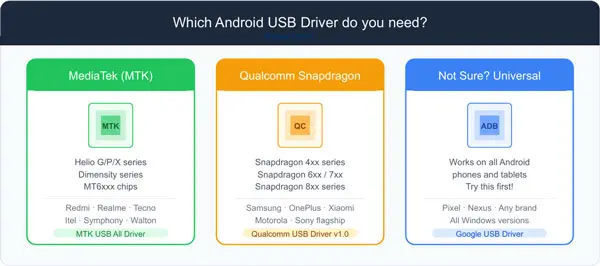
2. MediaTek (MTK) Android USB Drivers
These drivers are required for phones powered by MediaTek chipsets, such as Redmi, Realme, Tecno, Itel, Symphony, and Walton devices.
Your phone likely has an MTK chipset if the model mentions: MT6xxx, Helio G/P/X series, or Dimensity series.
| Driver Name | Type | Compatibility | Download |
|---|---|---|---|
| MTK USB All Driver ⭐ | Auto Installer (.exe) | All MTK devices | Download |
| MTK Driver Auto Installer | Auto Installer (.exe) | MTK6xxx series | Download |
| MTK VCOM USB Driver | Manual (.inf) | Flashing / IMEI tools | Download |
| MT65xx Preloader USB Driver | Manual (.inf) | Older MTK phones | Download |
💡 Tip: Try MTK USB All Driver first – it works with SP Flash Tool, SN Write Tool, and most MTK repair tools.
3. Qualcomm Snapdragon USB Drivers
These drivers are for phones powered by Qualcomm Snapdragon chipsets, such as Samsung Galaxy, OnePlus, Xiaomi/Redmi, and Motorola flagship devices.
Your phone likely has a Qualcomm chipset if it mentions: Snapdragon 4xx / 6xx / 7xx / 8xx series.
| Driver Name | Type | Use Case | Download |
|---|---|---|---|
| Qualcomm USB Driver v1.0 ⭐ | Auto Installer (.exe) | ADB + File Transfer | Download |
| Qualcomm HS-USB QDLoader 9008 | Manual (32-bit) | EDL / Fastboot Mode | Download |
| Qualcomm HS-USB QDLoader 9008 | Manual (64-bit) | EDL / Fastboot Mode | Download |
⚠️ Note: Qualcomm does not officially provide drivers directly to consumers. The links above are reliable community-maintained sources (Microsoft).
4. Brand-Specific USB Drivers
If generic drivers do not work, try the official USB driver from your phone’s manufacturer.
| Brand | Official Driver Page |
|---|---|
| Samsung | samsung.com – Driver Download |
| Google Pixel / Nexus | developer.android.com/studio/run/win-usb |
| OnePlus | oneplus.com/global/support |
| Xiaomi / Redmi | xiaomidriver.com |
| Realme | realme.com/in/support |
| Vivo | vivo.com/en/support |
| OPPO | oppo.com/in/support |
Full OEM List: For the complete list of all OEM USB driver pages, visit Google’s official page: developer.android.com/studio/run/oem-usb
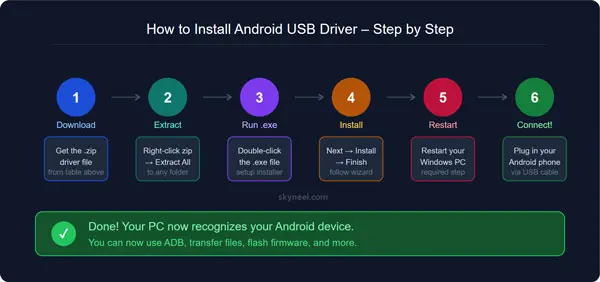
5. USB Driver Installation Guide – Method 1: Exe File
This is the easiest method and works for all auto-installer drivers.
Steps:
- Download the correct driver for your chipset from the tables above
- Extract the downloaded
.zipfile - Double-click the
.exefile to run the installer - Click Next → Next → Install → Finish
- Restart your computer
- Connect your Android phone via USB cable
✅ Done! Your PC will now recognize your Android device.
6. USB Driver Installation Guide – Method 2: Manual (.inf File)
Use this method for drivers that do not include an .exe installer.
- Step 1: Download and extract the driver zip file. Then connect your Android phone to your PC using a USB cable.
- Step 2: Click the Start button → Right-click on This PC → Select Manage → Open Device Manager.
- You will see your phone’s name or number in the right panel with a yellow triangle icon, indicating the driver is missing.
- Step 3: Right-click on the yellow triangle device → Click Update Driver Software → Select Browse my computer for driver software.
- Step 4: Click Browse, select the extracted driver folder, then click Next.
- Step 5: The driver installation will begin automatically. Click Close when it finishes.
🎉 Successfully Installed! Your Android device will now connect properly.
7. Common Errors & Solutions
| Error | Cause | Solution |
|---|---|---|
| Device not recognized | Driver not installed | Install the correct chipset driver |
| ADB device offline | USB Debugging is turned off | Go to Settings → Developer Options → Enable USB Debugging |
| Driver installed but phone not visible | Wrong USB mode | Select MTP / File Transfer mode on your phone |
| Driver signature error (Windows 10/11) | Unsigned driver | Download from a trusted source or enable Test Mode |
| Yellow triangle in Device Manager | Wrong or missing driver | Try the correct chipset driver |
How to Enable USB Debugging:
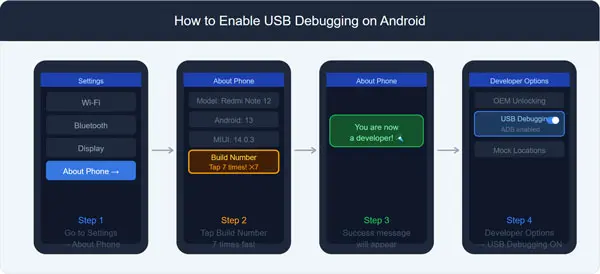
- Go to Settings → About Phone
- Tap Build Number 7 times quickly
- You will see the message You are now a developer!
- Go back to Settings → Developer Options → Enable USB Debugging
8. FAQs
Q: Is an Android USB Driver required on Mac and Linux?
Answer: No. On macOS and Linux, Android devices are usually detected automatically without needing a separate driver installation.
Q: Which driver is best for Windows 11?
Answer: Both the Google USB Driver and Universal ADB Driver (ClockworkMod) work on Windows 11.
📌 Also Read: Switching between Relative, Absolute and Mixed Cell References in Excel
💡 You might like: How to enable or use battery saver mode Android phone
Q: Are these drivers safe to download?
Answer: Yes. All links listed above point to official or well-known community sources. Google’s official Android developer pages are always the safest option.
Q: My phone is still not detected after installing the driver – what should I do?
Answer: Try the following: enable USB Debugging, try a different USB cable, and make sure your phone is set to File Transfer (MTP) mode.
Q: What is the difference between a Qualcomm driver and an MTK driver?
Answer: Qualcomm and MediaTek are two different chipset manufacturers. You must install the driver that matches your phone’s chipset. Installing the wrong driver will not work.
Q: Do I need to reinstall the driver after a Windows update?
Answer: Usually no. However, if your device stops being recognized after a Windows update, reinstalling the driver should fix the issue.
Conclusion
In this guide, we covered working USB drivers for all major Android chipsets – Universal, MediaTek (MTK), and Qualcomm Snapdragon – along with a complete installation guide and troubleshooting tips. If you are still facing issues or need a driver for a specific phone brand, let us know in the comments below.
Quick Recommendation:
- For all phones: Try Google USB Driver first
- MTK phones: Use MTK USB All Driver
- Qualcomm phones: Use Qualcomm USB Driver v1.0
Which driver for vivo y21l
what if i dont see my device in the device manager??
Usb tethering is not working in le echo 2 but when i connect my phone to my pc phone is getting charged but may not able to transfer files
xolo era 2 USB driver error code 52 in windows 7 help me
I WANT HOTWAV V17 USB DRIVER
hi i want micromax canvas a102 flas file
error link sir, >MT65xx Preloader USB Driver
please give me lyf sl 4006 usb driver link
Bro….I want one help bro… no update package found is coming the problem…how can I solve bro…
Sir, which pc suite to download for Lyf flame8
What is the USB driver for Xolo One HD. Whether phone is to be rooted to connect internet from mobile phone to PC.
hi,
you can download your driver from this guide.
thanks
which driver should download for lava A 59 mobile. pls provide direct link
Bro im using lyf frame1 but usb device not show on my laptop plz help me
Dear Sir Pls Help me
Sir I connect Mobile In My Pc But Not Show Internal For Pc How to Fir This Problem
Hi Pradeep
Here is guide for you: Use Android Phone as a Modem to run Internet on Your Computer
Hello! The V com drivers does not work for micromax E484 when connecting to pc on win xp. Was a bit disappointed There are MTP and ADB drivers that are to be installed for micromax E484. Cannot find the same after googling anywhere.?
please help to connect infinix zero 4 to my laptop
Mi celular marca Blu Grand 5.5 HD estudio cuando lo conecto a m PC no me reconoce mi cable USB por q será me pueden ayudar
Cambia el cable y veras
Hey bro how to connect le eco 1s to pc which driver should i use
hello ,
you use this driver for le 1s Eco.
Sir
How to intex aqua y2 ultra mobile otg spot
Hello
After doing all the manual procces the computer doesnt detect the blu studio xl2.any suggestion?
Have tried each of these drivers for my Micromax canvas 6 pro, not a single driver was compatible. Had left the usb de-bugging on in developers option and OEM unlocking in the same section. None of these drivers are compatible for my micromax E484. The yellow exclamation mark is present on the device manager even after pointing to the extracted folder or clicking the executive files. One of the driver installed on the computer but the device manager exclamation mark was still present.
Any remedy.
Thank you
689alza
you need to install Vcom driver for Micromax Canvas 6 Pro.
Hello Naresh Kumar,
Thank you for the the reply did not see the same till I accidentally stumbled by to the same website, hence the delay in thanking you.
Another question is What ADB driver from the three must I use to for the same phone android lollipop is the OS and my computer is win XP sp3 Pro Universal or Android ADB or Win ADBUSB driver? There was enormous confusion as am debut to this procedure. Thanks in advance.
689alza
Which Usb Driver to be downloaded for update Micromax A104
Hi Faizan,
You can download Micromax A104 Driver here
I want to connect my vivo 1606 in my panasonic led TV but it’s not connecting. . What will I do for this..
Hello Ajay
What you want to do by connecting your phone with your led tv. Tv can be connected with phone through Wi-Fi or bluetooth. Is your tv is smarttv?
Auto disconnect my a311 device so i cant fkash it what should i did for thus issue , when i connect my a311 then it shows driver successfully installed after 3 sec automatically get disconnect ,any solution ? Plz help!
Hello Shubhya,
Check your USB cable, use another USB cable and try it again.
Bro I want vcom driver for micromaxboltq336….
I tried your universal android driver for my LE2 but it is still not working
And device doesn’t found by ADB mine is a LE2
Please help me into this issue
hi Teja,
you can use Letv driver for Le 2. thanks for writing .
Not working on my PC both manual and universal driver Infinix Hot 4 pro ???? Please help MTP is not working
I want to know what is the USB driver for Micromax canvas doodle 3
Dear Pravin,
Please click on the given link to get the USB driver for Micromax Canvas Doodle 3…
yu6000 how to connect with pc
I want to internet itel A21 mobile to windows xp how to use???
Hi here is guide to use Android Phone as a Modem to run Internet on Your Computer.
i have hotwav v20 which one can i uesed
Hi, You can try mediatek USB driver.
Thanks, I am successfull
I want to know what is the USB driver for my Celkon A42 model
Try to use Mediatek driver.
Micromax A316
not root
please my help.*
Hi Natthu,
You can root your device using this guide
Thanks
Gi i am using Lava iris x5 3g mobile but i cannot update the driver on my pc following the 2nd method mentioned above. Could you please tell me a correct way how to install the usb driver for my mobile
Thanks
This is way too complicated for Me. I have been trying for 3 hours without success to do this. CAn you give me some more simple steps to download drivesr for my DAsh X Plus to connect to my windows 10 PC
Hi Peter, You can use Smart Phone or Android MediaTek USB Driver in the MediaTek Driver section.
amigo cuales son los cotroladores del blus dash jr 140