No Wi-Fi at home? Use your Android phone as a modem and get instant internet on your PC. Sometimes your PC doesn’t have direct internet access, but you can easily share your mobile data connection. In this guide, we explain three methods: USB tethering, Wi-Fi hotspot, and Bluetooth tethering.
If you don’t have Wi-Fi at home or office, or your internet is down, you can use your Android smartphone as a modem to access the internet on your computer or laptop. This is called Tethering.
This feature has been available since Android 2.3, and in today’s Android 15/16/17 it has become even simpler. You can do this in three ways:
- USB Cable — fastest and most stable
- Wi-Fi Hotspot — wireless, multiple devices
- Bluetooth — cable-free, low speed
Share Internet Methods Comparison Table
| Connection Type | Speed | Best For |
| USB Cable | Very High | Online Meetings & Gaming |
| Wi-Fi Hotspot | High | Multiple Devices |
| Bluetooth | Low | Basic Browsing & Battery Saving |
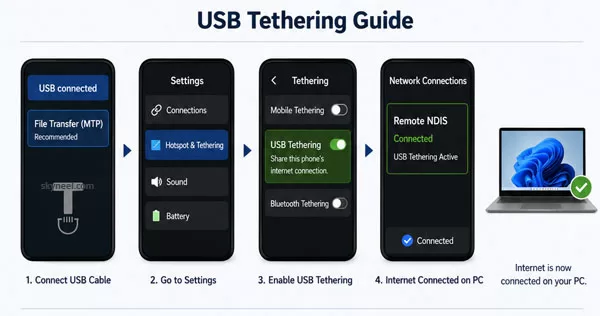
USB Tethering: Connecting PC to Mobile Data via USB Cable
Q1: How to connect mobile internet to PC using USB?
👉 Answer: If you are looking for the most stable and fastest connection, using a USB cable is the superior choice. Unlike wireless methods, USB tethering is not susceptible to signal interference from other electronic devices. Furthermore, because your phone is physically plugged into your computer, it draws power from the PC, ensuring your battery doesn’t die in the middle of an important task. To initiate this, simply connect your device to your computer.
- Connect phone with USB cable → Select MTP mode
- Go to Settings → Connections → Hotspot & Tethering
- Toggle USB Tethering ON
- Windows will show “Internet Connected”
The Convenience of Portable Wi-Fi Hotspots (Wireless)
Q2: How to share mobile internet wirelessly?
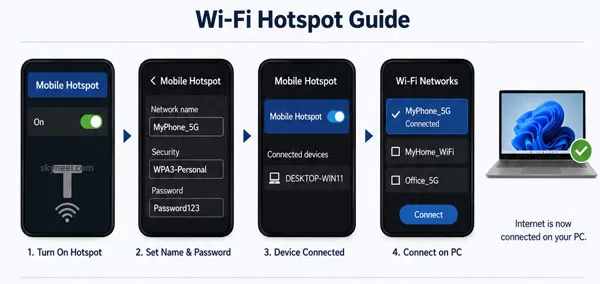
👉 Answer: For users who need to connect multiple devices—such as a laptop, a tablet, and a second phone—the Wi-Fi Hotspot method is the most practical. This turns your Android phone into a portable router. While this is the most convenient method, it is important to remember that it consumes significant battery power and can cause the device to heat up during prolonged use.
- Tap on Mobile Hotspot
- Set Name, Security (WPA3), Password
- Toggle ON → Device connected
- On Windows → Select Wi‑Fi hotspot name → Connect
Bluetooth Tethering for Battery Efficiency (No Cable)
Q3: How to connect PC internet via Bluetooth?
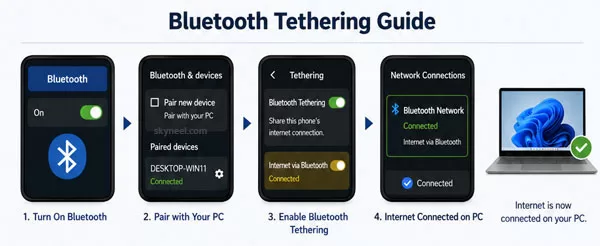
👉 Answer: While Bluetooth is significantly slower than USB or Wi-Fi, it serves a very specific purpose: energy efficiency. If you only need to check emails or browse text-heavy websites and you don’t have a charging port nearby, Bluetooth tethering is the best way to use your Android phone as a modem without killing your battery life.
- Turn ON Bluetooth on phone
- Pair phone with Windows (PIN confirm)
- Toggle Bluetooth Tethering ON
- On Windows → Bluetooth Network → Internet
Common Problems and Solutions
Problem: Internet not working after enabling USB Tethering
Solution: Open Device Manager on your PC → check Network Adapters for “Remote NDIS” driver. If not found, run Windows Update.
Problem: Hotspot is connected but internet is not working
Solution: Check if Mobile Data is turned ON on your phone. Also check your 4G/5G signal strength.
📌 Also Read: How to use PMT Function in Excel
💡 You might like: Easy Way to Use OFFSet Function in Excel
Problem: Bluetooth is paired but internet is not working
Solution: You need to manually turn ON the Bluetooth Tethering toggle on your phone — pairing alone is not enough.
Optimizing Your Connection for 2026 Standards
As 5G becomes the global standard, using your phone as a modem can often yield speeds faster than traditional home broadband. However, computers are designed to be data-hungry. Windows Updates or background cloud syncing (like OneDrive or Google Drive) can exhaust your monthly data limit in minutes. To prevent this, always set your computer’s connection as a “Metered Connection” in the Network settings.
Conclusion
Mastering the ability to use your Android phone as a modem ensures that you are never truly “offline.” By choosing the right method—USB for speed, Wi-Fi for convenience, or Bluetooth for battery life—you can stay productive regardless of your location or local infrastructure.
Pls mine is not working I have tried everything I am using windows xp I need reply urgently.
thanks
my computer is not showing my
device
hi akash,
first install usb driver of your device and click on usb thread.
thanks it works.
it is working but it is slow slow
how to make it run fast………………………………………………plz need quick reply
canvas hd not connecting to pc even after installing the drivers
mobile to pc not working with A116 solve this
install driver
micromax canvas a106 working with wifi but not with mobile data
Welcome
Join us on Facebook and Google plus for our new update and post
Abhishek Sharma ji thanking you lots.!
how to use pc to mobile
My windows 8 is detecting rooted canvas 2 as mobile pc and not as phone..also it is not getting paired with my pc… Please help.. My Canvas 1 is getting detected as phone and also pairing with my pc…. Kindly suggest
if you are check on debugging mode then unchecked it